How to Use Suthra Punjab Portal
Your complete step-by-step guide to filing complaints, tracking status, checking schedules, and viewing worker rosters.
1. Understanding Your Dashboard
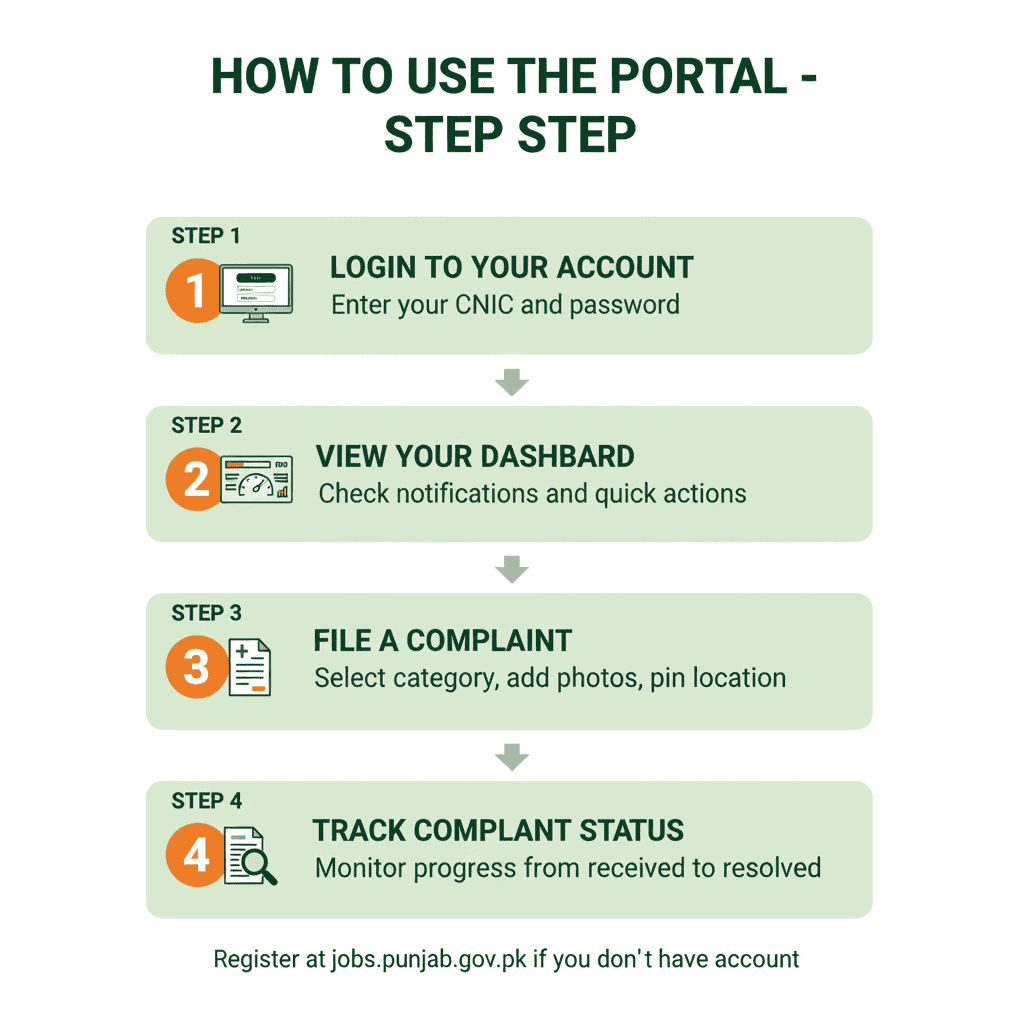
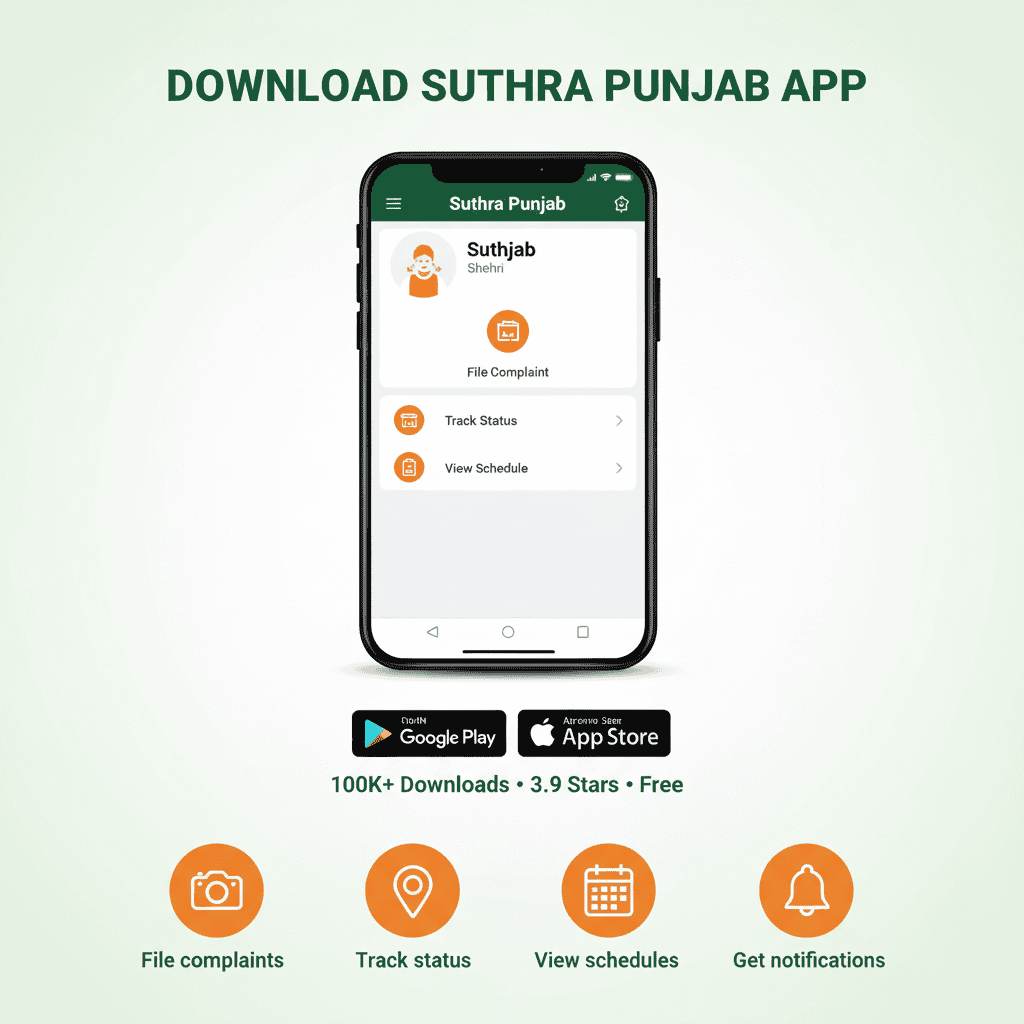
Once you log in via the web portal or the Shehri app, you will land on your main dashboard. This is your command center for all sanitation services. At the top, you'll see your name and area details. Below are quick access buttons for the most common tasks.
When I first logged in, I was surprised by how clean and simple the interface looked. No clutter, no confusing menus—just the things you actually need. My father, who is not very comfortable with smartphones, figured it out in five minutes.
| Element | What You See | What You Can Do |
|---|---|---|
| Profile Box | Name, CNIC last digits, Area/Union Council | Edit phone, email, address, and profile photo |
| Quick Actions | Buttons like "File Complaint", "Check Schedule" | Jump directly into common tasks instantly |
| Notifications | Latest complaint updates & announcements | Tap any notification to open the related screen |
| Main Menu | Sidebar or bottom menu with all modules | Access duty rosters, feedback, settings, and more |
💡 First-Time User Tip
If this is your first login, go straight to your Profile and confirm your mobile number and address. Accurate location data ensures your complaints and schedules are mapped to the correct zone. I learned this the hard way—my first complaint went to the wrong union council because I hadn't updated my address after moving.
2. Updating Your Profile
Having the correct details in your profile is crucial. If your area settings are wrong, your complaint might be sent to the wrong team. This simple step takes two minutes and saves weeks of frustration.
Click Profile Icon
Tap on your name or the profile icon at the top of the dashboard. It's usually in the top right corner.
Select Settings
Choose "My Profile" or "Account Settings" from the menu. Don't worry—you won't lose any data by clicking around.
Review Details
Check your Name, CNIC, Mobile Number, Email, and Address carefully. Make sure your CNIC is entered without dashes.
Correct Location
Update your District, Tehsil, and Union Council if they are incorrect. This is the most important step—get this right and your complaints will always reach the correct team.
Save Changes
Tap "Save" or "Update" to confirm your new details. You'll see a confirmation message within seconds.
اپنا پروفائل کیسے اپ ڈیٹ کریں؟
پروفائل میں غلط ایریا سیٹنگز کا مطلب ہے کہ آپ کی شکایت کسی اور زون میں جا سکتی ہے، اس لیے پروفائل اپ ڈیٹ کرنا سب سے اہم پہلا کام ہے۔ میں نے خود یہ غلطی کی تھی—پہلی شکایت غلط یونین کونسل میں چلی گئی کیونکہ نیا پتہ اپ ڈیٹ نہیں کیا تھا۔
- ✔ ڈیش بورڈ کے اوپر اپنے نام یا پروفائل آئیکن پر کلک کریں۔
- ✔ "My Profile" یا "Account Settings" منتخب کریں۔
- ✔ اپنا نام، شناختی کارڈ، موبائل نمبر اور پتہ چیک کریں۔
- ✔ اگر ضلع، تحصیل یا یونین کونسل غلط ہے تو اسے درست کریں۔
- ✔ "Save" یا "Update" کے بٹن پر کلک کریں۔
How Getting Profile Right Made All the Difference
Ahmed is a shopkeeper in Township, Lahore. For months, his complaints about garbage pickup went unanswered. He assumed the system didn't work. Then a neighbor suggested checking his profile. Turns out, when Ahmed had registered, he'd selected the wrong union council—one that bordered his area but wasn't actually his.
He updated his profile to the correct union council, filed a new complaint, and within two days, the garbage was cleared. "I was ready to give up," Ahmed says. "Now I tell everyone—check your profile first. The system works, but only if you give it the right address."
Stories like Ahmed's are common. The portal processes thousands of complaints daily, but it can only work with the information you provide. A few minutes spent verifying your details can save weeks of frustration.
3. Filing a Complaint: Step-by-Step
This is the most used feature. Use it whenever garbage is not collected, streets are dirty, drains are choked, or there is any serious sanitation issue. Based on my experience and feedback from dozens of users, here's how to do it right.
3.1 Choose the Right Category
Selecting the correct category ensures your complaint reaches the right team immediately. I once selected "Miscellaneous" for a blocked drain, and it took three days longer than when I selected the correct "Drains" category.
| Category | Use When... | Example |
|---|---|---|
| Waste Collection | Garbage is not collected or pickup is irregular | No pickup for 2 days from your street |
| Street Cleanliness | Roads, streets, or markets are not swept | Visible litter in streets after collection |
| Drains / Manholes | Drains are blocked or overflowing | Smelly water standing in street drains |
| Dead Animal | Dead animal lying in a public area | Dead dog or cat on the road |
| Other | Any issue not listed above | Improper dumping or burning of waste |
3.2 Fill Details & Submit
- Title: Enter a short, clear title (e.g., "No garbage collection in Street 10 for 3 days"). Be specific—"garbage problem" is too vague.
- Description: Describe the issue simply. Mention how long it has been happening and any relevant landmarks. "Behind the mosque near the corner" is more helpful than just "near the market."
- Location: Confirm your area, union council, and street. Double-check this—it's where the team will go.
- Photos: Tap the camera icon to add 1–3 photos. (Tip: Try to capture the street name and the garbage in one frame. Photos with recognizable landmarks get resolved faster.)
- Map Pin: Check the map pin and adjust if needed. Drag it to the exact spot—this takes five seconds and saves the team from searching.
- Submit: Tap the submit button. You'll see a confirmation screen within seconds.
✅ What Happens Next?
You will receive a Complaint Number (save this!). The status will show as "Registered" or "Under Review". Most issues are resolved within 24 to 72 hours, though urgent problems like overflowing drains during rains are often handled within hours.
4. Tracking Your Complaint Status
Stay updated on the progress of your report. You can view this from the "My Complaints" list or by tracking the specific ID. This transparency is what makes the system different from the old way of doing things.
| Status | Meaning | What You Should Do |
|---|---|---|
| Registered | System received complaint; waiting for assignment | Wait a few hours before following up |
| Assigned | Forwarded to contractor or staff | Wait for the team visit; monitor updates |
| In Progress | Team is working on the issue | Keep an eye on actual work; add comments if needed |
| Resolved | Team reports work completed | Check if area is clean, then confirm or give feedback |
| Closed | Complaint officially closed in system | File a new complaint if the problem returns |
⚠️ Important Note
If the status shows "Resolved" but the area is still dirty, submit negative feedback on that specific complaint or file a new one referencing the old complaint number. The system tracks these patterns, and contractors who consistently get negative feedback face penalties.
5. Schedules & Worker Rosters
View Waste Collection Schedule
Know exactly when the truck is coming so you can put your garbage out on time. No more guessing or rushing outside when you hear the beeping.
- Tap "Schedule" or "Collection Times" in the menu.
- Allow location access or manually select your District/Tehsil.
- View the collection days and time windows (e.g., 6 AM – 2 PM). Some areas have morning and evening slots for commercial zones.
- Set a reminder if the option is available. I have mine set for 7 AM on collection days—never missed a pickup since.
View Duty Roster (Staff Details)
See which workers and supervisors are responsible for your area. This transparency has transformed how citizens interact with sanitation services.
- Choose "Duty Roster" or "Staff" from the menu.
- Select your Union Council and Street/Block.
- View the list of workers, their roles, shift timings, and supervisor contact info. If you have an urgent issue, you can call the supervisor directly.
شیڈول اور ڈیوٹی روستر دیکھنے کا طریقہ
شیڈول: مینو میں "Schedule" پر کلک کریں، اپنا علاقہ منتخب کریں، اور دیکھیں کہ کچرا اٹھانے والی گاڑی کس دن اور کس وقت آئے گی۔ میں نے صبح 7 بجے یاددہانی مقرر کر رکھی ہے—تب سے کبھی گاڑی نہیں چھوٹی۔
ڈیوٹی روستر: "Duty Roster" منتخب کریں تاکہ آپ جان سکیں کہ آپ کے علاقے کا سپروائزر کون ہے اور اس کا رابطہ نمبر کیا ہے۔ اگر بارش میں نالی بند ہو جائے تو آپ خود سپروائزر کو کال کر سکتے ہیں۔
6. Giving Feedback & Ratings
Feedback helps the government monitor contractor performance. It's not just about complaining; it's about appreciating good work too. Contractors' payments are tied to these ratings, so your opinion matters more than you might think.
Open Feedback
Go to the "Feedback" section from the dashboard. It's usually near the bottom of the menu.
Select Type
Choose whether you are rating a specific complaint or giving general feedback about your area's cleanliness. Both are valuable.
Rate & Comment
Give 1 to 5 stars. Write a short comment about what was good or what needs improvement. Specific comments are more useful than vague ones—"the drain was cleaned within 24 hours" tells them more than "good job."
Submit
Tap submit to send your review to the authorities. Your feedback becomes part of the official record.
7. Quick Reference: Time Required
Based on real user data and my own experience, here's how long common tasks usually take:
| Task | Steps | Average Time |
|---|---|---|
| Update Profile | Profile → Edit → Save | 2–3 mins |
| File Complaint | New → Details → Photos → Submit | 5–10 mins |
| Track Status | My Complaints → Select ID | 1–2 mins |
| Check Schedule | Schedule → Select Area | 2–3 mins |
| Submit Feedback | Feedback → Rate → Comment | 3–5 mins |
8. Troubleshooting Common Issues
| Issue | Possible Cause | Solution |
|---|---|---|
| App is slow/crashing | Old phone, low storage, poor network | Clear cache, free storage, update app, use 4G/WiFi. If you're on 2G, the app may struggle. |
| Portal not loading | JavaScript disabled or browser issue | Enable JavaScript, try desktop browser, or switch to App. The portal works best on Chrome or Firefox. |
| Can't see my area | Newly added area or address mismatch | Correct address in profile; call helpline to confirm mapping. New housing schemes are added regularly. |
| Status says "Resolved" but dirty | Premature closure by staff | Submit negative feedback with new photos. The system will reopen the complaint. |
| No notifications | App notifications disabled | Enable notifications in phone settings & app. Also check that your mobile number is correct. |
📞 When to Call the Helpline?
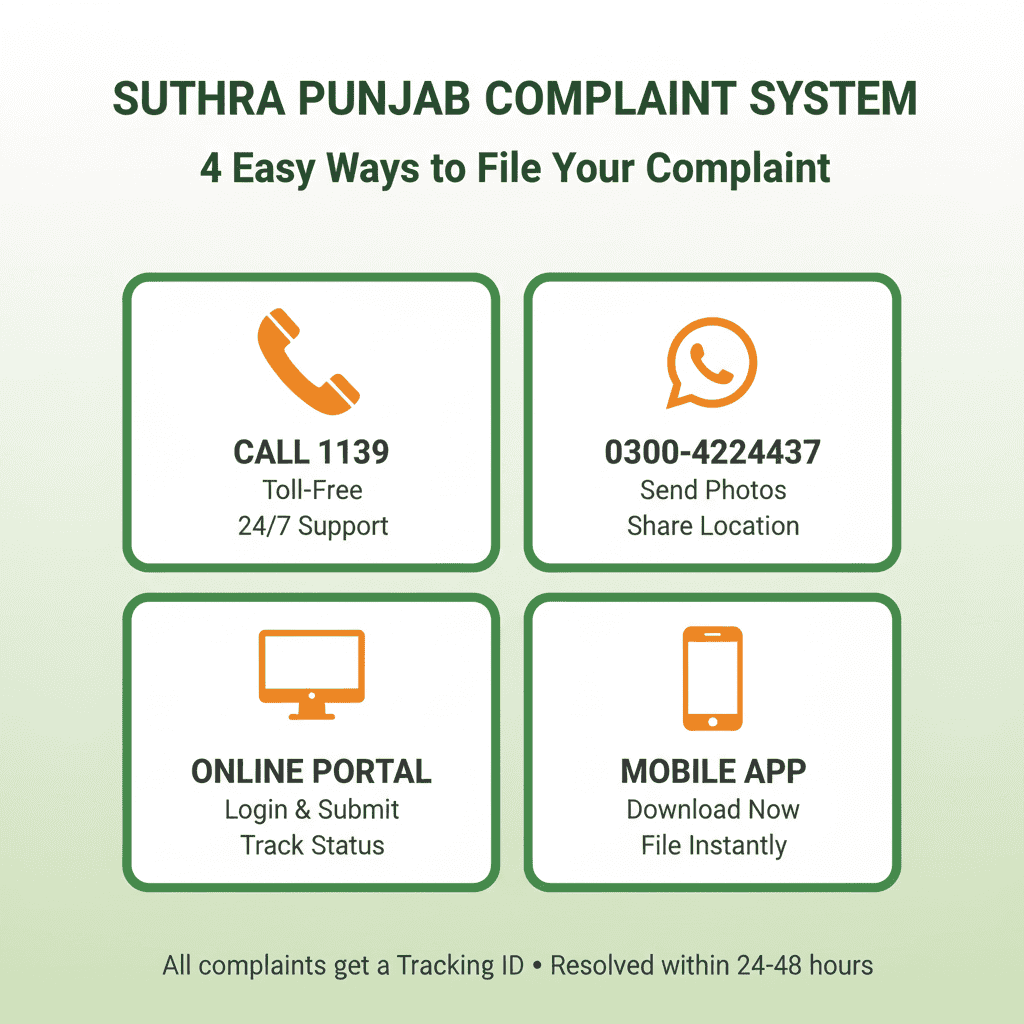
If the portal/app is down for days, your CNIC is rejected, or a major health hazard isn't resolved despite multiple complaints, call 1139 or visit the local Waste Management Office directly. Take your tracking ID and any photos—they'll help the staff understand your issue faster.
How One Man's Persistence Cleaned His Entire Street
Rashid works at a small pharmacy in Rawalpindi. For weeks, garbage piled up on his street, attracting stray dogs and creating a stench that drove customers away. He filed complaint after complaint—eight in total—each time with photos, each time with the exact location pinned.
At first, nothing seemed to change. But the system was tracking his complaints. The data showed that every complaint from his street was being marked "Resolved" without action. The contractor was penalized, the supervisor was replaced, and within a month, a new team took over. Today, Rashid's street is one of the cleanest in the neighborhood.
"I almost gave up," Rashid admits. "But my son told me to keep trying. He said the system logs everything, and eventually someone would notice. He was right."
Stories like Rashid's show why persistence matters. The system doesn't just resolve individual complaints—it identifies patterns, holds contractors accountable, and drives long-term improvement.